
A Make.com tutorial for beginners can be an eye-opener for anyone stepping into the world of automation. Whether you’re a small business owner looking to streamline your operations or a freelancer wanting to optimize your time, make.com offers intuitive tools to enhance productivity. The beauty of make.com is its capacity to bring various applications and services into one seamless workflow, reducing manual efforts and minimizing human error. As an automation consultant and Make.com Level 5 Expert, I’ve witnessed firsthand how this powerful platform can transform business processes. This tutorial aims to guide you through your first automation in just 30 minutes, using a simple yet effective workflow. We’ll explore how automation can alleviate repetitive tasks, allowing you to focus on more strategic aspects of your business. By the end of this article, you’ll have a solid understanding of how to set up an automation workflow tailored to your needs. Ready to dive in? Let’s get started on this journey to unlocking the potential of make.com.
Table of Contents
Understanding the Basics of Make.com
Before we dive into the specifics of setting up your first automation, it’s crucial to understand what make.com offers and how it operates. As a powerful integration and automation platform, make.com enables users to connect various applications and services without needing extensive technical knowledge. It’s akin to having a virtual assistant that manages routine tasks, freeing you to focus on what truly matters.
The platform operates on the concept of workflows, which are sequences of actions triggered by specific events. For instance, when a new email arrives in your inbox, you can set up a workflow to automatically save its attachments to Google Drive. This is just a taste of the efficiency that make.com can introduce into your daily operations.
For beginners, understanding the interface and core functionalities of make.com can be a bit overwhelming. However, the learning curve is not as steep as it may initially appear. The platform is designed with user-friendliness in mind, offering a visual interface where users can drag and drop different elements to create workflows. This visual approach significantly reduces the complexity often associated with automation tools.
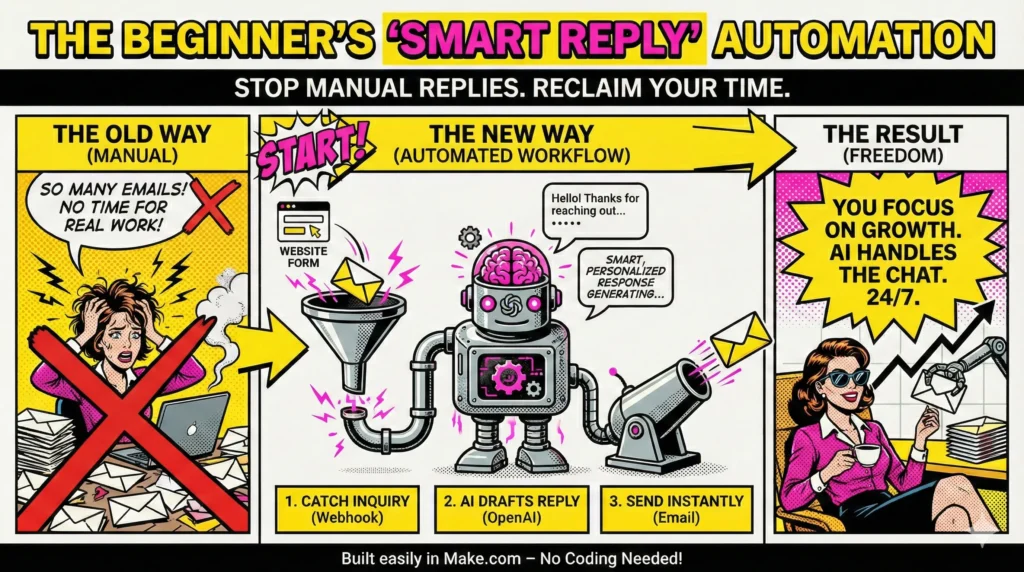
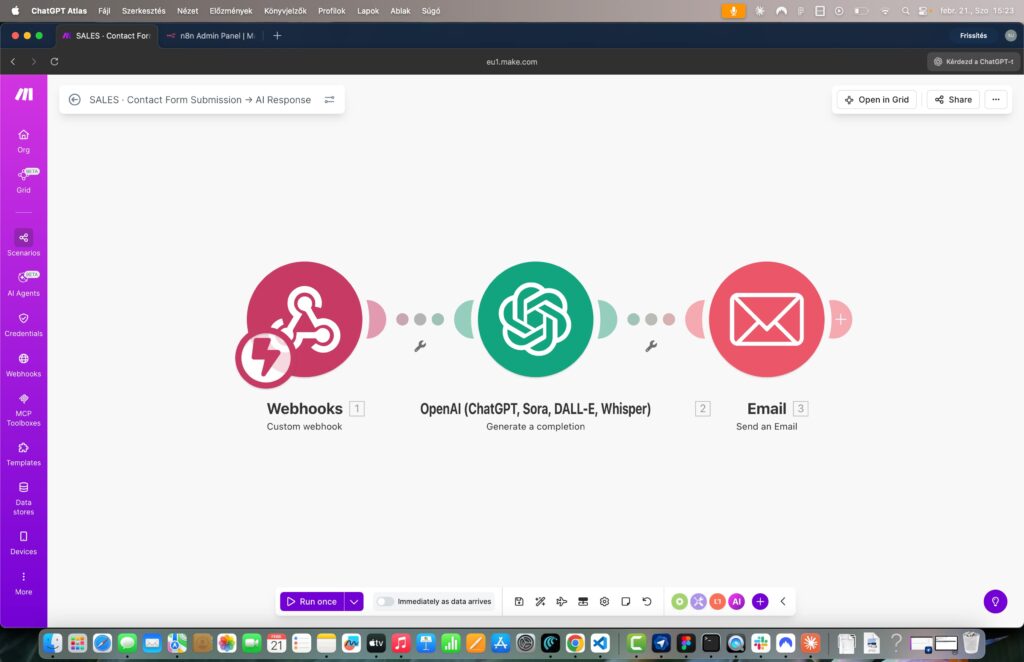
To start your journey with make.com, it’s advisable to begin with simple workflows that address your immediate needs. Our Smart Contact Form workflow is an excellent choice for beginners. It involves a webhook triggering OpenAI to generate an email response, drastically reducing the time spent on manual replies. This workflow not only introduces you to the fundamental operations of make.com but also delivers tangible benefits in a short span.
Remember, the goal is to familiarize yourself with the platform’s capabilities and start integrating it into your business processes. Once you’re comfortable with the basics, scaling up to more complex workflows becomes a natural progression.
Setting Up Your First Workflow
Embarking on your first automation project can seem daunting, but with a structured approach, it becomes quite manageable. The beauty of a make.com tutorial for beginners lies in its simplicity and clarity. Let’s walk through the steps required to set up your first workflow, using the example of the Smart Contact Form workflow.
The first step is to identify the task you want to automate. For instance, automating email responses can save a significant amount of time and ensure that your communications are both prompt and professional. In our example, the task is to automate responses to contact form submissions using a webhook to trigger OpenAI.
Once you’ve identified the task, the next step is to log into your make.com account and select “Create a new scenario.” This is where the magic begins. You’ll be greeted with a blank canvas, ready to host your first automation masterpiece.
Start by adding a webhook module. This module listens for incoming requests, such as a new form submission, and kicks off the workflow. After setting up the webhook, you’ll need to configure it to interact with OpenAI. This involves specifying the type of response you want OpenAI to generate based on the incoming data.
With OpenAI configured, the next step is to add an email module to send the generated response to the user. This seamless integration ensures that your contacts receive instant replies, enhancing your business’s responsiveness.
Once the workflow is set up, testing is crucial. Make sure to test each step to ensure the data flows correctly from one module to the next and that the final output meets your expectations. By following these steps, you can have your first automation up and running in approximately 30 minutes.
The key takeaway here is that, with make.com, you’re not just automating tasks; you’re crafting solutions that enhance efficiency and productivity. This initial setup is your gateway to exploring more advanced workflows as you become more comfortable with the platform.
Overcoming Common Challenges
As with any new tool, beginners may face challenges when first setting up their automation workflows. However, a make.com tutorial for beginners is designed to help you navigate these hurdles with relative ease.
One common challenge is understanding how different apps and services interact within a workflow. It can be a bit tricky to wrap your head around how data flows from one module to the next. This is where the visual nature of make.com becomes invaluable. Each module visually represents its role within the workflow, making it easier to see how information flows.
Another challenge is ensuring that your workflows are both efficient and robust. It’s essential to test your workflows thoroughly to identify any potential issues. For example, in the Smart Contact Form workflow, ensure that the webhook correctly triggers OpenAI, and that the email module sends the generated response accurately.
Additionally, beginners often struggle with correctly configuring webhooks and APIs. Make.com provides detailed documentation, and there are plenty of resources available online to help you understand how to set up these components correctly. If you get stuck, don’t hesitate to reach out for help. The make.com community is active and ready to support you in overcoming these challenges.
Finally, it’s essential to remember that automation is not a one-size-fits-all solution. Your business’s needs will evolve, and your workflows will need to adapt accordingly. Regularly review and refine your workflows to ensure they continue to meet your goals and enhance your operations.
By addressing these challenges head-on, you can confidently move forward and fully leverage the power of make.com to transform your business processes.
Exploring Advanced Workflows
Once you’ve mastered the basics with a Make.com tutorial for beginners, the next logical step is to explore more advanced workflows that can tackle complex tasks. The versatility of make.com means that the platform can grow alongside your business, providing solutions to challenges as they arise.
Advanced workflows often involve integrating multiple services and handling data in various formats. For instance, the Content Repurposing Engine workflow takes content from a YouTube RSS feed, processes it through Gemini AI, and sends it via email. This setup not only automates content repurposing but also ensures that your content marketing remains consistent and efficient.
Another example of an advanced workflow is the Review Response Bot. This workflow automates the process of responding to reviews on Google My Business, ensuring that each response is timely and personalized. By leveraging AI, the workflow can craft responses that reflect your brand’s voice, enhancing your business’s reputation.
As you delve into these advanced workflows, you’ll encounter new features and capabilities within make.com. Learning to use routers, filters, and iterators can greatly enhance the efficiency of your workflows. These tools allow you to process data conditionally, ensuring that your workflows are both efficient and tailored to specific scenarios.
It’s important to approach these advanced workflows with patience and a willingness to experiment. Mistakes are part of the learning process, and each error provides an opportunity to deepen your understanding of the platform. With time and practice, you’ll be able to create sophisticated workflows that drive significant improvements in your business operations.
By embracing the possibilities of advanced workflows, you can unlock the full potential of make.com and position your business for long-term success.
Conclusion
A Make.com tutorial for beginners is your gateway to a world of possibilities in business automation. By mastering the basics and gradually progressing to more complex workflows, you can transform the way your business operates. Automation not only improves efficiency but also frees you to focus on strategic initiatives that drive growth.
As you embark on your journey with make.com, remember that the platform is a tool designed to enhance your capabilities. Each workflow you create is a step toward a more streamlined and productive operation. Don’t be discouraged by the challenges you may face along the way. Instead, view them as opportunities to learn and grow.
At La Maquina Studio, we are committed to helping you navigate the world of automation with confidence. Our resources, including detailed course materials and ready-to-use automation kits, are designed to support you every step of the way. To learn more and start your automation journey, visit our courses page.
Embrace the power of make.com today, and watch as it revolutionizes your business, one workflow at a time.


Susana Toth
Make.com Certified Expert & Founder, La Maquina Studio
Susana Toth is a Make.com Certified Expert and the founder of La Maquina Studio, where she helps small businesses and consultants eliminate repetitive work through smart automation. With 20+ years of experience in web design, business consulting, and digital strategy, she builds practical AI-powered workflows that save hours every week — without writing a single line of code. She writes about Make.com automation, AI integration, and building systems that work while you don’t.
Learn more about me →