
Every inquiry gets a response within 15 seconds. Time-wasters don’t eat my hours. Serious leads trigger an instant Slack alert. The whole thing runs on autopilot.
Another inquiry just came in. You read through it and realize you’re about to waste another 20 minutes of your day – and you had better things to do. This happens every day. Sometimes more than once.
Every website has a contact form that potential clients fill out – or at least, that’s who it’s meant for. But plenty of messages are just information requests, tire-kicking, research, or plain nonsense. And the problem – this was true for me for years – is that I’d spend just as much time (sometimes more) on a pointless inquiry as on one that could turn into a great project.
I spent years working as a mentor with small business owners, and nearly all of them brought up the same time-killer: having to respond to these inquiries. So when I started working in automation, I knew this would be one of the first problems I wanted to solve.
I built a system that handles all three:
- Responds instantly (before the lead goes cold)
- Distinguishes serious from casual (before I waste my time)
- Alerts me when it’s worth picking up the phone (before a competitor beats me to it)
This article shows you how it works. If you want to skip the technical details and just use it, jump to the end – the ready-made kit is there.
The best part? This is one of the simplest automations a small business can implement
This isn’t an enterprise solution. You don’t need Salesforce, HubSpot, or a $200/month SaaS tool. What you need:
- Make.com account (free tier is enough to start)
- OpenAI API key (pay-as-you-go, one lead analysis costs ~$0.01)
- Google Sheets (free)
- A contact form on your website (any kind: Tally, Typeform, HTML form)
- Slack (optional, but strongly recommended)
Total cost: practically zero to start, a few dollars per month once running.
For comparison: traditional lead scoring tools (HubSpot Sales Hub, Drift, Salesforce Einstein) run $139-890/month and are built for sales teams. If you work solo or have a small team, that’s overkill.
Table of Contents
The workflow logic – before we talk about modules
Before jumping into Make.com, it’s important to understand the logic:
1. Smart questions on the form
The first filter isn’t AI – it’s the form itself. I don’t just ask for name and email. I also ask:
- What’s your project? (free text – this is the most important field)
- What’s your budget range? (dropdown)
- When do you need to start? (dropdown)
- What industry are you in?
- How did you find me?
Anyone unwilling to spend 2 minutes filling this out has filtered themselves out. Years of experience have trained my natural instincts – I can instantly tell when someone can’t spell their own company name, uses a teenage email address for a business inquiry, or can’t string together 3 coherent sentences about a project they claim will last months. You can train these “folk observations” into the AI filter too – very precisely. It’s like having a colleague at your company who screens and responds on your behalf.
2. AI context analysis, not keyword matching
The AI doesn’t just look for the word “urgent” in the text. It interprets all fields together. “$50K revenue Shopify store migration + $10K budget + 1-3 months” means something entirely different from “maybe I’ll need a website someday, if I can find the budget, any discounts available?”
3. Three tiers, three treatments
Every lead gets a response – but not the same one:
- HOT (8-10 points): Instant, personal, enthusiastic email + Slack alert to me
- WARM (4-7 points): Friendly, informative email – keeps the door open
- COLD (1-3 points): Polite, brief response – not offensive, not wasteful either
You set the decision logic. The automation executes it. Relentlessly.
What modules make up the Smart Lead Qualifier?
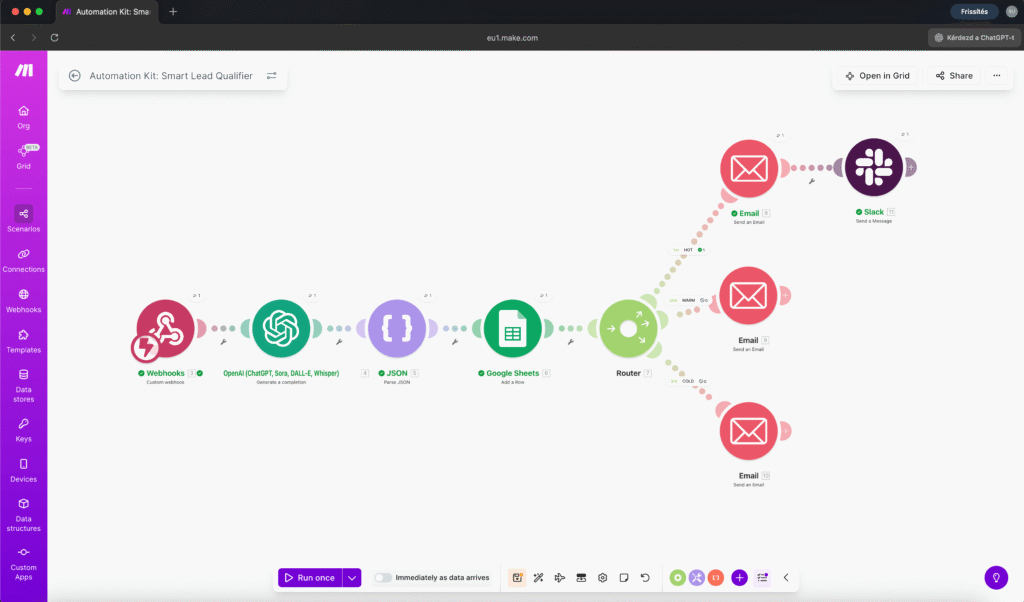
Just 9 modules: Webhook → OpenAI → JSON Parse → Google Sheets → Router → Email HOT → Email WARM → Email COLD → Slack.
Webhook: receiving the data
A webhook is a URL where the form sends the submitted data. It doesn’t matter which form builder you use – Tally, Typeform, Google Forms, or plain HTML – all of them can send to a webhook.
OpenAI: the heart of the system
This is the only module that makes decisions. Everything else is just execution.
I use the OpenAI module in Create Chat Completion mode. The system prompt tells the AI:
- Who I am, what I do, what kind of clients I’m looking for
- How to score (1-10, based on what criteria)
- What format to respond in (JSON: score, category, summary, email_subject, email_body)
- What style to write the email in (my voice, my offer)
The user message contains all the form data.
One call – and the AI returns the score, the category, the summary, and the finished email. No need to run separate modules for analysis and email generation.
The trick is in the quality of the prompt.
The more specific the prompt, the more accurate the scoring.
JSON Parse: small but critical step
The OpenAI responds in JSON. The JSON Parse module breaks this into individual fields that the other modules can use separately.
Google Sheets: business intelligence that builds itself
Every inquiry goes into a spreadsheet: date, name, email, company, industry, project, budget, timeline, source, AI score, category, summary.
This isn’t just a log. After a month of data, you can see:
- Which sources produce HOT leads? (Google Ads? Referral? Organic?)
- Which industry sends the most serious inquiries?
- What budget range is most common?
- How does the weekly HOT/WARM/COLD ratio change?
This data tells you where to advertise, what content to create, and how to adjust your pricing. It accumulates automatically, with zero extra work.
Of course, you can also route the data to a MailerLite or GetResponse group instead of Sheets – whichever your business already uses.
Router: the traffic controller
The Router decides which branch the inquiry takes based on the score. You set three filter conditions:
- If score >= 8 → HOT branch
- If score >= 4 AND score < 8 → WARM branch
- Everything else → COLD branch (fallback route)
You decide the thresholds. If a score of 6 counts as HOT in your market, lower the bar. The logic is yours, the execution is automatic.
Email branches: every lead gets a response – but their own
The HOT email: enthusiastic, specific, references the project. Suggests next steps. Offers a call. Reads like you wrote it – even at 3 AM.
The WARM email: friendly, informative. Doesn’t push, but doesn’t let go either. Includes a useful link or two that builds trust.
The COLD email: polite, brief. Thanks them for reaching out. Not offensive – but not wasteful either.
No two HOT leads get the same email. The AI tailors every single email to the specific inquiry’s project, industry, and needs.
Slack: instant alert – only when it matters
On the HOT branch, after the email, a Slack message goes to you:
🔥 HOT LEAD – Score: 9/10 Name: Sarah Mitchell Company: GreenLeaf Commerce Industry: E-commerce Budget: $5,000-$10,000 AI summary: “Complete webshop redesign with specific requirements and approved budget.”
This hits your phone. You can call the client within 10 minutes.
WARM and COLD leads only trigger an email. You can handle those in the usual way – responding to WARM leads within 24-48 hours – or you can extend the automation further. It’s partly a business philosophy question: how much do you let AI handle, and when does a genuinely personal response add real value?
The difference in numbers
Manual handling (before): 20 inquiries/week → 20 personal emails → ~10 hours → 2-3 clients
With automatic qualification: 20 inquiries/week → 0 manual emails → ~5 min (Slack check) → 2-3+ clients
Monthly savings: 40 hours. Annually: nearly 500 hours. That’s almost 12 full work weeks. But I don’t like thinking about it that way – what matters more is the quality of the saved time. You free yourself from enormous pressure, and that shows up in other areas of your business too.
Beyond the saved time, there’s a hidden advantage: you respond to HOT leads within 15 seconds. Not with some automated “Dear #Name” template, but with a personalized message – and you can immediately follow up in person. According to Lead Connect research, 78% of buyers purchase from whoever responds first. That 15-second response time is an invaluable competitive edge.
Build it yourself or get it ready-made? Both are good decisions.
I created this site to get this information to business owners at every level, but everyone is at a different stage. That’s why I want everyone to have a solution.
Build it yourself
If you enjoy learning and have a few hours to spare, this is an excellent entry-level automation. The hard part isn’t connecting the modules. The hard part is writing the prompt – because that determines how accurate the scoring is. And designing the JSON structure so the AI’s response is usable by the other modules. My first Make.com automation took 7 hours to build… and that was after I’d already put in 16-hour sessions building n8n automations. I use and love both systems, but you need to understand the logic.
The description above gives you the logic – it runs on Make.com’s free tier, and OpenAI API is pay-as-you-go.
You pay with your time – but that’s exactly the point. It pays off on the other side.
Get it ready-made: Automation Kit
If you don’t want to experiment with the prompt and JSON structure, and want a system that works immediately:

What’s in the kit:
- Importable Make.com blueprint (JSON) – the complete 9-module workflow
- Pre-formatted Google Sheets template for lead logging
- WordPress-compatible HTML form – paste it right in
- The tested AI prompt – scores, categorizes, and responds to inquiries
- Setup video – webhook configuration and module authentication walkthrough
- Troubleshooting guide – the most common Make.com errors and solutions
Import it, swap in your own details (email, Sheets, Slack, company name), and it runs.
Setup time: 30-60 minutes if you’re already familiar with Make.com and enjoy getting things up and running.
I’m Susana – as a Make.com Expert, I build automation solutions for small businesses. If you have questions about this workflow, or you’d like me to customize it for your company, request a custom quote – if you’re HOT, I’ll be the one responding! 🙂


Susana Toth
Make.com Certified Expert & Founder, La Maquina Studio
Susana Toth is a Make.com Certified Expert and the founder of La Maquina Studio, where she helps small businesses and consultants eliminate repetitive work through smart automation. With 20+ years of experience in web design, business consulting, and digital strategy, she builds practical AI-powered workflows that save hours every week — without writing a single line of code. She writes about Make.com automation, AI integration, and building systems that work while you don’t.
Learn more about me →