
Make.com just released new Make AI Agents. I rebuilt my lead qualification workflow with it – same credit cost, completely different experience.
When Make.com dropped their next-generation AI Agents on February 11, 2026, I did what any automation builder would do: I rebuilt an existing workflow to see if the hype was real.
Here’s the short version: both workflows cost the same to run (42 vs 50 credits). Both handle customer inquiries. But one required me to write every condition by hand. The other one just… figured it out.
Let me show you exactly what happened.
The job both workflows do
Every service business has the same problem. Inquiries come in through a contact form. Some people want pricing. Some want a proposal. Some have an emergency. And some are just browsing.
Somebody has to read each message, decide what it is, and respond appropriately. That’s the job. And if you’ve been doing it manually, you know it eats hours every week.
Both of my workflows automate this from end to end: form comes in, gets classified, the right response goes out, everything gets logged. Zero manual work.
The difference is how they make decisions.
Version 1: Smart Lead Qualifier (the traditional way)
This is the workflow I built a few weeks ago using “classic” Make.com modules. Here’s what it looks like on the canvas:
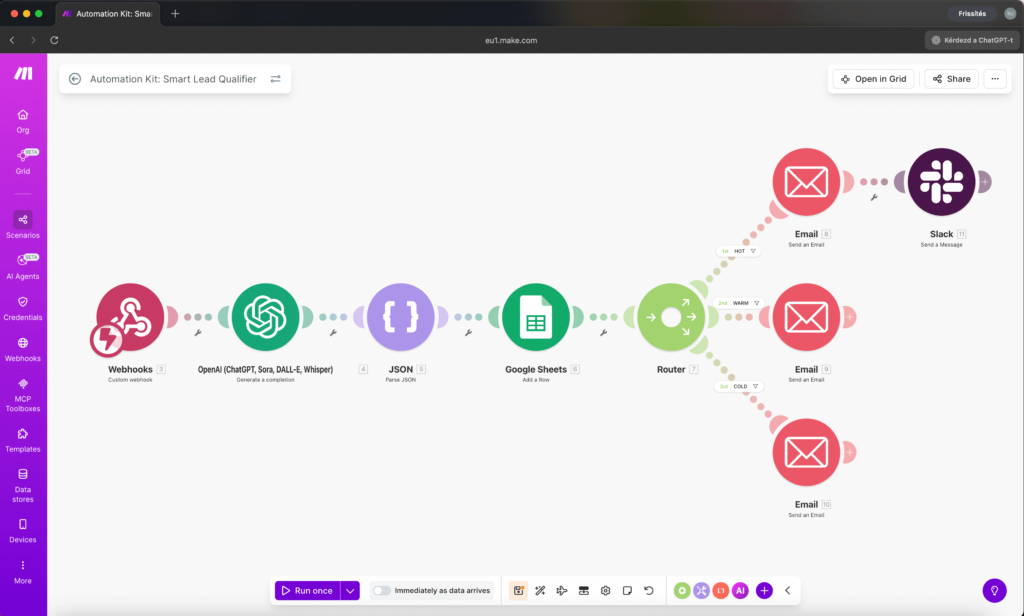
9 modules. The flow goes like this:
Webhook catches the form submission. OpenAI analyzes the inquiry and scores it. JSON Parse extracts the structured data. Google Sheets logs everything. Then a Router splits the flow into three paths based on filter conditions I wrote manually:
- Score 0-40 (just browsing) – send an educational email
- Score 41-70 (interested) – send a consultation offer
- Score 71-100 (hot lead) – send a priority email + Slack alert
Each path has its own Email module. Total: 9 modules, plus filters on each Router branch that I had to configure with exact conditions: Smart Lead Qualifier
The catch? I had to decide in advance what makes someone a “hot lead” vs “just browsing.” I wrote those rules. If someone phrases their urgency in a way my filters don’t catch – like saying “my website crashed this morning” instead of selecting “urgent” from a dropdown – the Router sends them down the wrong path.
Routers are literal. They do exactly what you tell them. Nothing more.
Version 2: Smart Inquiry Agent (the AI Agent way)
Same job. Built from scratch using the new Make AI Agents (New) module. Here’s the canvas:
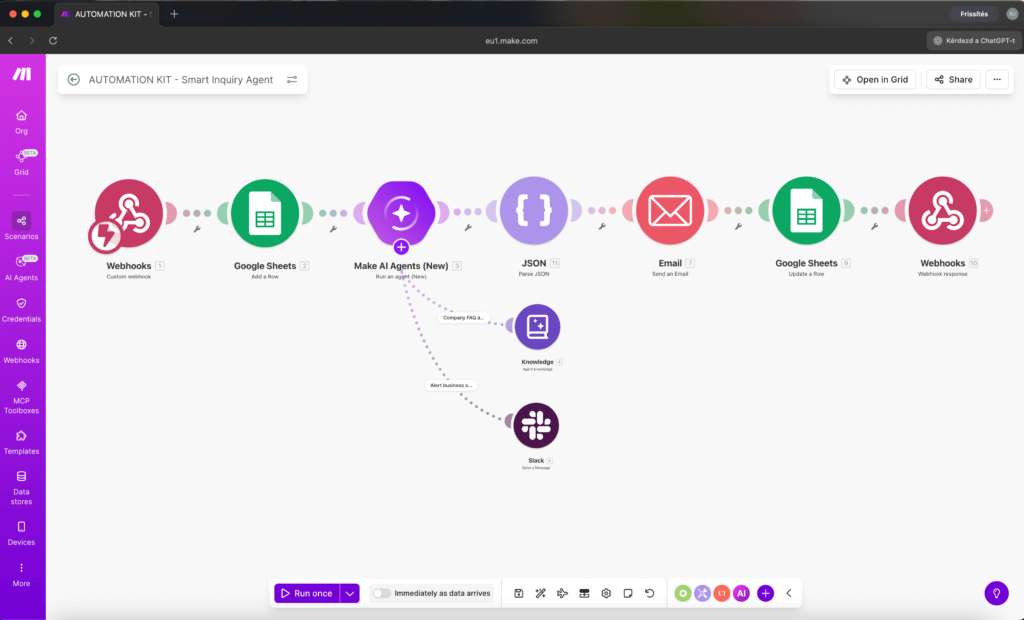
7 modules. The flow:
Webhook catches the form. Google Sheets logs it. AI Agent reads the inquiry, checks a knowledge base, decides what to do, writes the response, and sends a Slack alert if it’s urgent. JSON Parse extracts the structured response. Email sends whatever the agent wrote. Google Sheets updates the log. Webhook Response confirms everything.
No Router. No filters. No conditions I had to write.
The agent has three things:
- Instructions – a plain-English description of how to handle each type of inquiry
- Knowledge – a text file with my company FAQ, pricing, and service descriptions
- One tool – Slack, so it can alert me directly when something is urgent
That’s it. The agent reads the message, understands the context, classifies it, pulls relevant info from the knowledge base, writes a personalized response, and decides whether to ping me on Slack. All in one module.
More credits. Different experience.
Here’s what surprised me most. I expected the AI Agent version to cost significantly more because it’s running an AI model that reasons and makes decisions
| Smart Lead Qualifier | Smart Inquiry Agent | |
|---|---|---|
| Modules on canvas | 9 | 7 |
| Credits per run | 42 | 43 |
| AI model calls | 1 (OpenAI) | 1 (Make AI Provider) |
| Router/filters needed | Yes (manual conditions) | No |
| Knowledge base | No | Yes (FAQ file) |
| Tool calls | None | Slack (when needed) |
| Setup time | ~45 min | ~30 min |
42 credits vs 50 credits. Essentially identical. But the setup experience couldn’t be more different.
With the traditional version, I spent time configuring the Router, writing filter conditions, and making sure each branch handled its case correctly. If I wanted to add a fourth category, I’d need to add another Router branch, another filter, another Email module.
With the AI Agent version, I’d just update the Instructions text. “Oh, and if someone asks about partnerships, write a polite redirect email.” Done. No new modules. No new filters.
What the Reasoning Panel shows you
Here’s the thing that sold me on AI Agents (New) for real.
After each run, you can click the agent module and open the Reasoning Panel. It shows you step by step:
- What the agent received as input
- How it classified the inquiry
- Whether it decided to use a tool (and which one)
- What it wrote as the response
- How many tokens it consumed
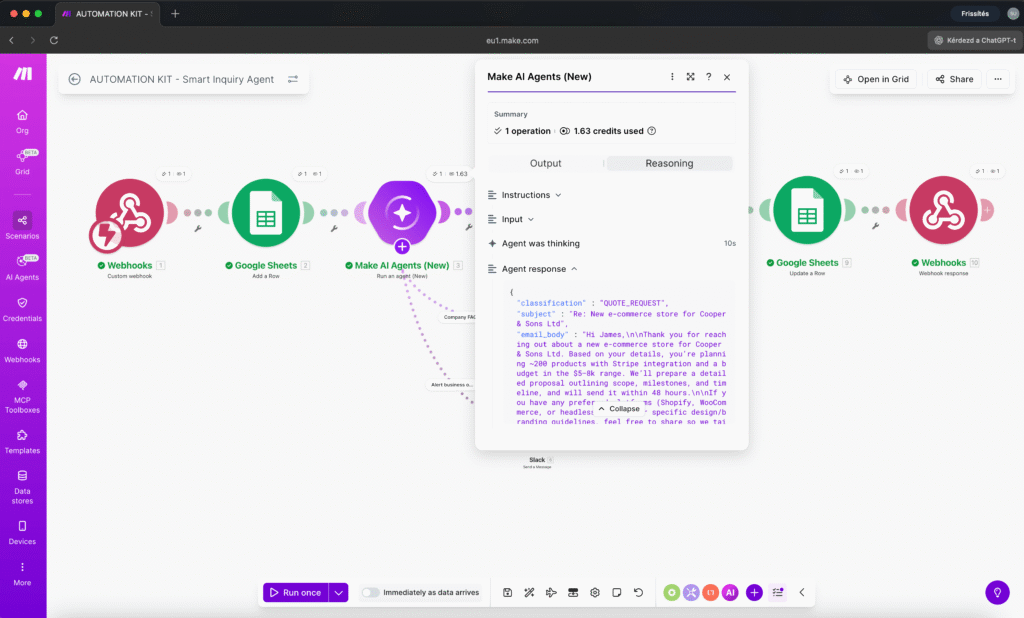
This is not a black box. You can see exactly why the agent chose “URGENT” instead of “FAQ.” You can see it pulled pricing data from the knowledge file. You can see it decided to alert you on Slack because the message contained phrases like “down since this morning” and “losing money.”
With the Router version, I’d have to guess why something went to the wrong branch and then dig through filter conditions to find the bug. With the agent, the reasoning is right there.
The test results
I ran four test scenarios through both systems. Here’s how the AI Agent handled them:
Test 1 – FAQ question: “How much does a basic website cost?”
- Classification: FAQ
- Action: Pulled pricing from knowledge base, sent detailed email with service tiers
- Slack: No (not urgent)
Test 2 – Quote request: “We need an e-commerce store, 200 products, budget $5-8k”
- Classification: QUOTE_REQUEST
- Action: Acknowledged the project, referenced relevant pricing, promised proposal within 48 hours
- Slack: No
Test 3 – Urgent issue: “Our website has been down since this morning! Customers can’t place orders!”
- Classification: URGENT
- Action: Sent Slack alert with full customer details, sent empathetic “we’re escalating this” email
- Slack: Yes – immediate alert with customer name, email, and issue summary
Test 4 – General inquiry: “Would you be interested in a partnership?”
- Classification: GENERAL
- Action: Polite acknowledgment, promised response within 24 hours
- Slack: No
Every classification was correct. Every response was appropriate and personalized. The urgent Slack alert arrived within seconds.
Now here’s the interesting part: the Router version would have handled tests 1, 2, and 4 similarly. But test 3? The customer didn’t select “Support issue” from the dropdown – they selected “General question” and then described an emergency in the message field. A Router would route based on the dropdown value. The agent understood the actual content.
When to use which approach
I’m not saying AI Agents replace Routers. They don’t. Here’s my honest take after building both:
Use a Router when:
- Your conditions are simple and binary (yes/no, above/below a number)
- You need guaranteed, deterministic behavior every single time
- The decision doesn’t require understanding natural language
- You’re on a free plan (Module Tools may require paid plans for multiple active scenarios)
Use an AI Agent when:
- The decision requires understanding context or intent
- You want the system to handle edge cases you didn’t anticipate
- The response needs to be personalized, not templated
- You’d need 5+ Router branches to cover all the cases
- You want to update behavior by editing text, not reconfiguring modules
The sweet spot? Combine them. Use an AI Agent for the classification and response writing, then use a Router for the deterministic actions that follow. Best of both worlds.
What I learned building this
A few practical notes if you’re about to try AI Agents (New) yourself:
The Knowledge feature is genuinely useful. Upload a FAQ file and the agent answers questions from it accurately. This isn’t just a bigger system prompt – it uses RAG (retrieval-augmented generation) to pull only the relevant chunks. My company FAQ is about 60 lines of text and the agent consistently found the right section.
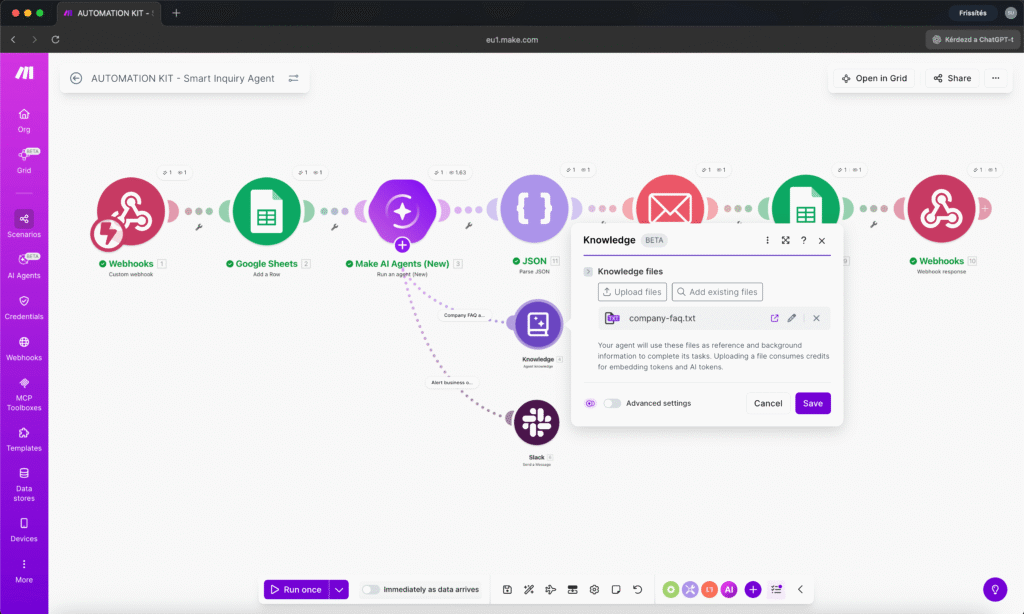
Tool descriptions matter more than you think. The agent decides which tool to use based almost entirely on the tool’s name and description. If your Slack tool description says “send a message” instead of “alert the business owner for urgent issues only,” the agent might ping Slack for every single inquiry. Be specific.
Not every app works as a Module Tool. I tried adding Gmail and SMTP email as tools – neither was available. The workaround: let the agent write the email content in its response, then use a regular Email module on the canvas to send it. This actually gives you more control.
Response Structure is your friend. Set the Response Format to “Data structure” and define fields like classification, subject, email_body, and summary. The agent fills them in, and you can map each field to your next module. You might need a JSON Parse module as a bridge since the structured data sometimes lands in the response field as a JSON string rather than in separate output fields. This is likely a beta quirk that will get ironed out.
Start with the Chat feature. Before wiring up the full scenario, use the built-in Chat on the agent hub to test your Instructions and Knowledge. Ask sample questions. See if it classifies correctly. Iterate until it handles your edge cases. Then connect the modules.
The bottom line
42 credits vs 50 credits for the same job. Same reliability. But one approach scales with a text edit, and the other requires new modules, new filters, and new testing every time your business logic changes.
Make AI Agents (New) isn’t magic. It’s a different tool for a specific type of problem – decisions that require understanding, not just matching. If your automation needs to understand why a customer is writing, not just match keywords, this is the module for it.
I’ll be building more of these and sharing what works and what doesn’t. If you want to follow along, I’m putting together a full Make.com course with 8 complete workflows from beginner to expert level at lamaquina.studio.


Susana Toth
Make.com Certified Expert & Founder, La Maquina Studio
Susana Toth is a Make.com Certified Expert and the founder of La Maquina Studio, where she helps small businesses and consultants eliminate repetitive work through smart automation. With 20+ years of experience in web design, business consulting, and digital strategy, she builds practical AI-powered workflows that save hours every week — without writing a single line of code. She writes about Make.com automation, AI integration, and building systems that work while you don’t.
Learn more about me →